As some of you may know, I started a new job with Microsoft last September. I apologize for the lack of updates as I have been getting settled with the new job.
I have resumed blogging at a new location: http://blogs.msdn.com/karsmith/
--Nick
Tuesday, January 29, 2008


Wednesday, July 11, 2007
NDR Message: 5.6.1 Body type not supported by Remote Host
I spent this afternoon tracking down an odd NDR message received when an Exchange 2007 user sends a message to a distribution group hosted on an Exchange 2003 server containing contact objects. When the user sends a message to such a distribution group the following NDR message is received:
The headers of this message indicate that it was routed through the Exchange 2007 transport servers to Exchange 2003 via the routing group connector and to the Exchange 2003 listed as the expansion server for the distribution list. Most importantly, the NDR generating server was the Exchange 2003 distribution group expansion server.
I immediately began looking into the contact objects for which the NDR was generated. Oddly, I was able to successfully send mail directly to the contact object. I only received an NDR message when sending to a distribution group of which the contact object was a member. Further testing revealed that Exchange 2003 users were able to successfully send messages to the distribution group. The message was delivered to all members including the contact objects in question.
To muddy the waters, NDR messages are not generated for all contact objects in the distribution list. We created several new contacts and added them to a distribution list trying to find the difference between working and non-working contacts. This new test distribution list exhibited the same behavior as others; NDR’ing some contacts while successfully sending the message to others. NDR messages were always generated for the same contacts. At this point I compared the working and non-working contacts but I was unable to find any differences that would cause the problem.
On a hunch, since I was able to send messages to the contacts directly from Exchange 2007, I decided to change the expansion server for the distribution group to an Exchange 2007 transport server. This did the trick and both Exchange 2003 and 2007 users are able to send to all members of the distribution group. While I can’t fully explain why the distribution group does not work when expanded on an Exchange 2003 server, I can accept this simple workaround as the solution to our problems. Hopefully someone more knowledgeable than me can explain this in the comments section.
To resolve this problem set the distribution group expansion server to an Exchange 2007 server. This can be done in the Exchange Management Shell with the following command:
--Nick
Delivery has failed to these recipients or distribution lists:
Smith,Nick
The e-mail system had a problem processing this message. Microsoft Exchange will not try to redeliver this message for you. Please provide the following diagnostic text to your system administrator.
Diagnostic information for administrators:
Generating server: e2003server.domain.com
k.nick.smith@gmail.com
#< #5.6.1 smtp;554 5.6.1 Body type not supported by Remote Host> #SMTP#
…
The headers of this message indicate that it was routed through the Exchange 2007 transport servers to Exchange 2003 via the routing group connector and to the Exchange 2003 listed as the expansion server for the distribution list. Most importantly, the NDR generating server was the Exchange 2003 distribution group expansion server.
I immediately began looking into the contact objects for which the NDR was generated. Oddly, I was able to successfully send mail directly to the contact object. I only received an NDR message when sending to a distribution group of which the contact object was a member. Further testing revealed that Exchange 2003 users were able to successfully send messages to the distribution group. The message was delivered to all members including the contact objects in question.
To muddy the waters, NDR messages are not generated for all contact objects in the distribution list. We created several new contacts and added them to a distribution list trying to find the difference between working and non-working contacts. This new test distribution list exhibited the same behavior as others; NDR’ing some contacts while successfully sending the message to others. NDR messages were always generated for the same contacts. At this point I compared the working and non-working contacts but I was unable to find any differences that would cause the problem.
On a hunch, since I was able to send messages to the contacts directly from Exchange 2007, I decided to change the expansion server for the distribution group to an Exchange 2007 transport server. This did the trick and both Exchange 2003 and 2007 users are able to send to all members of the distribution group. While I can’t fully explain why the distribution group does not work when expanded on an Exchange 2003 server, I can accept this simple workaround as the solution to our problems. Hopefully someone more knowledgeable than me can explain this in the comments section.
The Solution
To resolve this problem set the distribution group expansion server to an Exchange 2007 server. This can be done in the Exchange Management Shell with the following command:
Set-DistributionGroup “Group Display Name” –ExpansionServer:E2007ServerName--Nick
Friday, June 29, 2007
Exchange 2007 Update Rollup 3 Released
The long awaited fix for the Outlook 2003 in-line attachments issue is included in the rollup.
Description of Update Rollup 3 for Exchange 2007
Additionally, the rollup includes the fix to the "Cannot open the free/busy information" error mentioned in my Managing Resource Mailbox Calendars Article.
I for one will be installing this rollup ASAP as we have been waiting for some of these fixes for quite a long time.
--Nick
Description of Update Rollup 3 for Exchange 2007
Additionally, the rollup includes the fix to the "Cannot open the free/busy information" error mentioned in my Managing Resource Mailbox Calendars Article.
I for one will be installing this rollup ASAP as we have been waiting for some of these fixes for quite a long time.
--Nick
Monday, June 18, 2007
Script: Identifying Quota Bottlenecks
Quota increase requests are a frequent occurrence for me. Without blindly approving the request, I prefer to look for large folders within a users’ mailbox that could easily be archived (e.g. ‘Sent Items 05’ or ‘Archived Items’). I have used the following scripts to see the number of items and size of user mailbox folders.
The Exchange Management Shell offers some built-in tools to accomplish this task. Massaging the output makes it easier to identify quota bottlenecks. This script can be run from any computer with the Exchange Management Shell
The Script:
The Output:
The attached VBScript must be run on the mailbox server hosting the user’s mailbox. It connects to the IFS drive and evaluates the size of each folder in the user’s mailbox. I modified a script previously published by Glen Scales and adapted it to output the name and total size of the folder to the command window.
**Remember to change your domain name on line 15**
The Script:
'Adapted from http://www.outlookexchange.com/articles/glenscales/mreport2.asp
Dim obArgs,cArgs,iSize,ndate,tmailbox
Set obArgs = WScript.Arguments
tmailbox = obArgs.Item(0)
Main
Sub Main()
Dim sConnString,domainname
'On Error Resume Next
domainname = "mail.domain.com"
' Set up connection string to mailbox.
sConnString = "file://./backofficestorage/" & domainname
sConnString = sConnString & "/mbx/" & obArgs.Item(0) & "/NON_IPM_SUBTREE"
iSize = 0
Wscript.Echo
RecurseFolder sConnString, ""
WScript.Echo
WScript.Echo "Mailbox Size: " & replace(formatnumber((iSize/1024/1024),2),",","") & " MB"
End Sub
Public Sub RecurseFolder(sConnString, sParentFolder)
Dim oConn
Dim oRecSet
Dim sSQL
Dim sFolderPath
' Set up SQL SELECT statement.
sSQL = "SELECT ""http://schemas.microsoft.com/mapi/proptag/x0e080003"", "
sSQL = sSQL & """DAV:href"",""DAV:hassubs"",""DAV:displayname"" "
sSQL = sSQL & "FROM SCOPE ('SHALLOW TRAVERSAL OF """ & sConnString
sSQL = sSQL & """') WHERE ""DAV:isfolder"" = true"
' Create Connection object.
Set oConn = CreateObject("ADODB.Connection")
Set oRecSet = CreateObject("ADODB.Recordset")
' Set provider to EXOLEDB.
oConn.Provider = "Exoledb.DataSource"
' Open connection to folder.
oConn.Open sConnString
if Err.Number <> 0 then
WScript.Echo "Error opening connection: " & Err.Number & " " & Err.Description
Set oRecSet = Nothing
Set oConn = Nothing
Exit Sub
end if
' Open Recordset of all subfolders in folder.
oRecSet.CursorLocation = 3
oRecSet.Open sSQL, oConn.ConnectionString
if Err.Number <> 0 then
WScript.Echo "Error opening recordset: " & Err.Number & " " & Err.Description
oRecSet.Close
oConn.Close
Set oRecSet = Nothing
Set oConn = Nothing
Exit Sub
end if
if oRecSet.RecordCount = 0 then
oRecSet.Close
oConn.Close
Set oRecSet = Nothing
Set oConn = Nothing
Exit Sub
end if
' Move to first record.
oRecSet.MoveFirst
if Err.Number <> 0 then
WScript.Echo "Error moving to first record: " & Err.Number & " " & Err.Description
oRecSet.Close
oConn.Close
Set oRecSet = Nothing
Set oConn = Nothing
Exit Sub
end if
' Loop through all of the records, and then add the size of the
' subfolders to obtain the total size.
While oRecSet.EOF <> True
' Increment size.
iSize = iSize + oRecSet.Fields.Item("http://schemas.microsoft.com/mapi/proptag/x0e080003")
foldersize = oRecSet.Fields.Item("http://schemas.microsoft.com/mapi/proptag/x0e080003")
workfolderfp = oRecSet.Fields("DAV:href").value
workfolder = oRecSet.Fields("DAV:displayname").value
sFolderPath = sParentFolder & "/" & workfolder
if InStr(sConnString,"NON_IPM_SUBTREE") = 0 then
Dim sSplit
sSplit = Split(sFolderPath,"/")
Dim sShortPath
sShortPath = ""
for i = 2 to Ubound(sSplit)
sShortPath = sShortPath & sSplit(i) & "/"
next
Dim sSize, sFolder, sDisplay
sFolder = Left(sShortPath,Len(sShortPath)-1)
sSize = replace(formatnumber((foldersize/1024),0),",","") & " KB"
sDisplay = sFolder & " "
for i = Len(sFolder) to (50 - Len(sSize))
sDisplay = sDisplay & " "
next
sDisplay = sDisplay + sSize
WScript.Echo sDisplay
end if
' If the folder has subfolders, recursively call RecurseFolder to process them.
If oRecSet.Fields.Item("DAV:hassubs") = True then
RecurseFolder oRecSet.Fields.Item("DAV:href"), sFolderPath
End If
' Move to next record.
oRecSet.MoveNext
if Err.Number <> 0 then
WScript.Echo "Error moving to next record: " & Err.Number & " " & Err.Description
Set oRecSet = Nothing
Set oConn = Nothing
Exit Sub
end if
wend
' Close Recordset and Connection.
oRecSet.Close
if Err.Number <> 0 then
WScript.Echo "Error closing recordset: " & Err.Number & " " & Err.Description
Set oRecSet = Nothing
Set oConn = Nothing
Exit Sub
end if
oConn.Close
if Err.Number <> 0 then
WScript.Echo "Error closing connection: " & Err.Number & " " & Err.Description
Set oRecSet = Nothing
Set oConn = Nothing
Exit Sub
end if
' Clean up memory.
Set oRecSet = Nothing
Set oConn = Nothing
End Sub
The Output:
Download both scripts
--Nick
Exchange 2007
The Exchange Management Shell offers some built-in tools to accomplish this task. Massaging the output makes it easier to identify quota bottlenecks. This script can be run from any computer with the Exchange Management Shell
The Script:
param($alias = $(read-host alias))
Get-MailboxFolderStatistics $alias | FT FolderPath,ItemsInFolder,@{label="FolderSize (KB)";expression={$_.FolderSize.ToKB()} }
Get-MailboxStatistics $alias | FT ItemCount,StorageLimitStatus,@{label="TotalItemSize (KB)";expression={$_.TotalItemSize.Value.ToKB()} },@{label="TotalItemSize (MB)";expression={$_.TotalItemSize.Value.ToMB()} },LastLogonTime
The Output:
[PS] C:\Temp>.\MailboxSize.ps1 e12_test1

FolderPath                              ItemsInFolder           FolderSize (KB)
----------                              -------------           ---------------
/                                                   0                         0
/Calendar                                           5                        33
/Contacts                                           0                         0
/Deleted Items                                     10                         9
/Drafts                                             0                         0
/Inbox                                             10                     79356
/Journal                                            0                         0
/Junk E-Mail                                        0                         0
/Notes                                              0                         0
/Outbox                                             0                         0
/RSS Feeds                                          0                         0
/Sent Items                                        14                        32
/Sync Issues                                        0                         0
/Sync Issues/Conflicts                              0                         0
/Sync Issues/Local Fail...                          0                         0
/Sync Issues/Server Fai...                          0                         0
/Tasks                                              0                         0

ItemCount      StorageLimitStatus      TotalItemSize (KB)      TotalItemSize (MB) LastLogonTime
---------      ------------------      ------------------      ------------------ -------------
       43              BelowLimit                   79438                      77 6/6/2007 2:03:07 PM
Exchange 2003
The attached VBScript must be run on the mailbox server hosting the user’s mailbox. It connects to the IFS drive and evaluates the size of each folder in the user’s mailbox. I modified a script previously published by Glen Scales and adapted it to output the name and total size of the folder to the command window.
**Remember to change your domain name on line 15**
The Script:
'Adapted from http://www.outlookexchange.com/articles/glenscales/mreport2.asp
Dim obArgs,cArgs,iSize,ndate,tmailbox
Set obArgs = WScript.Arguments
tmailbox = obArgs.Item(0)
Main
Sub Main()
Dim sConnString,domainname
'On Error Resume Next
domainname = "mail.domain.com"
' Set up connection string to mailbox.
sConnString = "file://./backofficestorage/" & domainname
sConnString = sConnString & "/mbx/" & obArgs.Item(0) & "/NON_IPM_SUBTREE"
iSize = 0
Wscript.Echo
RecurseFolder sConnString, ""
WScript.Echo
WScript.Echo "Mailbox Size: " & replace(formatnumber((iSize/1024/1024),2),",","") & " MB"
End Sub
Public Sub RecurseFolder(sConnString, sParentFolder)
Dim oConn
Dim oRecSet
Dim sSQL
Dim sFolderPath
' Set up SQL SELECT statement.
sSQL = "SELECT ""http://schemas.microsoft.com/mapi/proptag/x0e080003"", "
sSQL = sSQL & """DAV:href"",""DAV:hassubs"",""DAV:displayname"" "
sSQL = sSQL & "FROM SCOPE ('SHALLOW TRAVERSAL OF """ & sConnString
sSQL = sSQL & """') WHERE ""DAV:isfolder"" = true"
' Create Connection object.
Set oConn = CreateObject("ADODB.Connection")
Set oRecSet = CreateObject("ADODB.Recordset")
' Set provider to EXOLEDB.
oConn.Provider = "Exoledb.DataSource"
' Open connection to folder.
oConn.Open sConnString
if Err.Number <> 0 then
WScript.Echo "Error opening connection: " & Err.Number & " " & Err.Description
Set oRecSet = Nothing
Set oConn = Nothing
Exit Sub
end if
' Open Recordset of all subfolders in folder.
oRecSet.CursorLocation = 3
oRecSet.Open sSQL, oConn.ConnectionString
if Err.Number <> 0 then
WScript.Echo "Error opening recordset: " & Err.Number & " " & Err.Description
oRecSet.Close
oConn.Close
Set oRecSet = Nothing
Set oConn = Nothing
Exit Sub
end if
if oRecSet.RecordCount = 0 then
oRecSet.Close
oConn.Close
Set oRecSet = Nothing
Set oConn = Nothing
Exit Sub
end if
' Move to first record.
oRecSet.MoveFirst
if Err.Number <> 0 then
WScript.Echo "Error moving to first record: " & Err.Number & " " & Err.Description
oRecSet.Close
oConn.Close
Set oRecSet = Nothing
Set oConn = Nothing
Exit Sub
end if
' Loop through all of the records, and then add the size of the
' subfolders to obtain the total size.
While oRecSet.EOF <> True
' Increment size.
iSize = iSize + oRecSet.Fields.Item("http://schemas.microsoft.com/mapi/proptag/x0e080003")
foldersize = oRecSet.Fields.Item("http://schemas.microsoft.com/mapi/proptag/x0e080003")
workfolderfp = oRecSet.Fields("DAV:href").value
workfolder = oRecSet.Fields("DAV:displayname").value
sFolderPath = sParentFolder & "/" & workfolder
if InStr(sConnString,"NON_IPM_SUBTREE") = 0 then
Dim sSplit
sSplit = Split(sFolderPath,"/")
Dim sShortPath
sShortPath = ""
for i = 2 to Ubound(sSplit)
sShortPath = sShortPath & sSplit(i) & "/"
next
Dim sSize, sFolder, sDisplay
sFolder = Left(sShortPath,Len(sShortPath)-1)
sSize = replace(formatnumber((foldersize/1024),0),",","") & " KB"
sDisplay = sFolder & " "
for i = Len(sFolder) to (50 - Len(sSize))
sDisplay = sDisplay & " "
next
sDisplay = sDisplay + sSize
WScript.Echo sDisplay
end if
' If the folder has subfolders, recursively call RecurseFolder to process them.
If oRecSet.Fields.Item("DAV:hassubs") = True then
RecurseFolder oRecSet.Fields.Item("DAV:href"), sFolderPath
End If
' Move to next record.
oRecSet.MoveNext
if Err.Number <> 0 then
WScript.Echo "Error moving to next record: " & Err.Number & " " & Err.Description
Set oRecSet = Nothing
Set oConn = Nothing
Exit Sub
end if
wend
' Close Recordset and Connection.
oRecSet.Close
if Err.Number <> 0 then
WScript.Echo "Error closing recordset: " & Err.Number & " " & Err.Description
Set oRecSet = Nothing
Set oConn = Nothing
Exit Sub
end if
oConn.Close
if Err.Number <> 0 then
WScript.Echo "Error closing connection: " & Err.Number & " " & Err.Description
Set oRecSet = Nothing
Set oConn = Nothing
Exit Sub
end if
' Clean up memory.
Set oRecSet = Nothing
Set oConn = Nothing
End Sub
The Output:
C:\temp>cscript MailboxSize.vbs user.csuf
Microsoft (R) Windows Script Host Version 5.6
Copyright (C) Microsoft Corporation 1996-2001. All rights reserved.


Inbox                                         472 KB
Outbox                                          0 KB
Sent Items                                     16 KB
Deleted Items                                   0 KB
Calendar                                        0 KB
Contacts                                        0 KB
Drafts                                          0 KB
Journal                                         0 KB
Notes                                           0 KB
Tasks                                           0 KB
Sync Issues                                     0 KB
Sync Issues/Conflicts                           0 KB
Sync Issues/Local Failures                      0 KB
Sync Issues/Server Failures                     0 KB
Junk E-mail                                     1 KB

Mailbox Size: 0.48 MB
Download both scripts
--Nick
Thursday, May 24, 2007
Exchange 2003/2007: Enable Calendar Sharing
With a default installation of Exchange 2007, when an Exchange 2003 user tries to open/view the shared calendar of an Exchange 2007 user they receive the error “Unable to display the folder. The Calendar folder could not be found.” This error is received because the Exchange 2007 server rejects the MAPI request from the user’s Exchange 2003 server. Adding the following registry value will allow the Exchange 2007 server to accept these requests from 2003 servers:
Path: HKEY_LOCAL_MACHINE\System\CurrentControlSet\Services\MSExchangeIS\ParametersSystem
Value Name: Disabled MAPI Clients
Value Type: REG_SZ
Value Date: -6.4.9999
The value “-6.4.9999” will allow Exchange 2007 servers to accept connections from Exchange 2003 and all versions of Outlook.
You can read more about this setting at:
How to disable MAPI client access to a computer that is running Exchange Server
http://support.microsoft.com/kb/288894
Technet: All versions of Outlook are allowed to access the server
http://technet.microsoft.com/en-us/library/69e7ac7b-9f0b-4b0d-879a-334c1b41242b.aspx
--Nick
Path: HKEY_LOCAL_MACHINE\System\CurrentControlSet\Services\MSExchangeIS\ParametersSystem
Value Name: Disabled MAPI Clients
Value Type: REG_SZ
Value Date: -6.4.9999
The value “-6.4.9999” will allow Exchange 2007 servers to accept connections from Exchange 2003 and all versions of Outlook.
You can read more about this setting at:
How to disable MAPI client access to a computer that is running Exchange Server
http://support.microsoft.com/kb/288894
Technet: All versions of Outlook are allowed to access the server
http://technet.microsoft.com/en-us/library/69e7ac7b-9f0b-4b0d-879a-334c1b41242b.aspx
--Nick
Sunday, May 6, 2007
Exchange 2007 Clustering: Important KB articles
Kerberos Authentication
Kerberos authentication will not work on an Exchange 2007 clustered server (CMS and SSC) until each cluster node machine is granted permissions to write the ‘Validated-SPN’ property on the CMS Active Directory computer object. Additionally, the following error messages will be entered into the Application event log.
Event Type: Error
Event Source: MSExchangeSA
Event Category: General
Event ID: 9317
Date:
Time:
The KB article ID 935676 details the process of granting this permission on the CMS computer object.
Event ID 9317 is logged when the Microsoft Exchange System Attendant service comes online on an Exchange 2007 cluster node
Provisioning mailboxes on additional Single Copy Cluster nodes
If you are creating a multiple CMSs (Clustered Mailbox Server) in a Single Copy Cluster you should be aware of the following KB article. When trying to provision a mailbox on a second or successive CMS you receive the following error:
“A proxy generator DLL on server FQDN.serverName could not be found or failed to initialize. Proxy addresses for the current recipient cannot be calculated. Please ensure that all the proxy addresses for the current recipient cannot be calculated. Please ensure that all proxy address generator DLLs have been installed on the target server.”
This error can be solved by creating a message transfer agent (MTA) in Active Directory for each CMS.
How to enable mailbox creation on the second or later clustered mailbox server (CMS) of an Exchange 2007 Single Copy Cluster (SCC)
--Nick
Tuesday, May 1, 2007
Managing Resource Mailbox Calendars
The Set-MailboxCalendarSettings cmdlet is one of the most useful and flexible cmdlets available with Exchange 2007. However, its flexibility often leads to complexity and confusion. I’ll do my best to walk you through the possibilities and help explain some areas where the Microsoft documentation is lacking.
Let’s start off by getting the calendar settings of a resource.
You will see the identity of the resource and its AutomateProcessing type. This can be set as one of 3 possibilities:
AutoUpdate is the default value for all mailboxes to help users manage their calendar data. The AutoAccept processing mode can only be enabled on resource mailboxes.
From http://www.microsoft.com/exchange/evaluation/features/default.mspx each attendant is defined as the following:
Now we explore the great flexibility this cmdlet offers (and the root of that flat spot on your forehead from repeating banging it against the wall). There are 3 distinct, counter-intuitively named policies that can be defined for automatic calendar processing:
If you want to get fancy you can use the following command to allow all users to submit in-policy requests while allowing user1 to submit out-of-policy requests and adding the ‘Executive Committee’ distribution group members to the book-in policy.
The Set-MailboxCalendarSettings cmdlet allows the administrator to define resource delegates without having to manually configure an Outlook profile and navigate the appropriate menus to define delegates. The feature is one of my favorites and very useful for self-service applications. However it has been a bit buggy. Here are the two bugs I have identified and should be fixed in SP1.
In additions to the features offered by the resource booking attendant there are many other calendar customizations that can be defined. Below are a few useful options that we use all the time. A complete list can be found at http://technet.microsoft.com/en-us/library/aa996340.aspx.
If you fear the command line like some of my co-workers (you know who you are… Jon) you can manage most of these settings via connecting to the resource mailbox via OWA and editing the ‘Resource Scheduling Options’. You have the ability to manage all of the calendar settings you would from the command line with the exception of defining resource delegates.
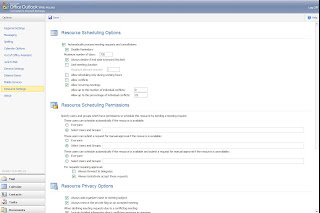
To open the resource mailbox via OWA you must define full-mailbox access to the managing user. This can be done from the Exchange Management Shell with the following command.
--Nick
AutomateProcessing
Let’s start off by getting the calendar settings of a resource.
[PS] C:\>Get-MailboxCalendarSettings demo_laptop_1
Identity                                      AutomateProcessing
--------                                      ------------------
ColoState.EDU/ExchangeResources/Demo Laptop 1 AutoAccept
You will see the identity of the resource and its AutomateProcessing type. This can be set as one of 3 possibilities:
- None
- Both the resource booking and calendar attendants are disabled.
- AutoUpdate
- Only the calendar attendant is enabled.
- AutoAccept
- Both the resource booking and calendar attendants are enabled.
AutoUpdate is the default value for all mailboxes to help users manage their calendar data. The AutoAccept processing mode can only be enabled on resource mailboxes.
Calendar and Resource Booking Attendants
From http://www.microsoft.com/exchange/evaluation/features/default.mspx each attendant is defined as the following:
- Calendar Attendant
- The Calendar Attendant reduces scheduling conflicts by limiting calendar items (request, declines, accepts) in the inbox to the latest version. The Calendar Attendant also marks meeting requests as tentative on recipient calendars until users can act on the request and relies on the Exchange Server 2007 free/busy Web service for always up-to-date availability information.
- Resource Booking Attendant
- The Resource Booking Attendant enables resources, including meeting rooms or other equipment, to be automatically managed. Resources can auto-accept requests when available or decline and provide details explaining the decline. Administrators can set granular policies on resources, including available hours or scheduling permissions.
Calendaring Policies
Now we explore the great flexibility this cmdlet offers (and the root of that flat spot on your forehead from repeating banging it against the wall). There are 3 distinct, counter-intuitively named policies that can be defined for automatic calendar processing:
- Book-In Policy Requests
- Users that are defined in the ‘Book-In-Policy’ are allowed to automatically schedule a resource if it available. Resource delegates do not have to approve these requests.
- In-Policy Requests
- Requests from users defined in the ‘In-Policy’ group must be approved by a resource delegate.
- Out-Of-Policy Requests
- Users defined in the ‘Out-Of-Policy’ group have their requests automatically approved unless there is a conflict on the resource calendar. If a conflict exists, the calendar request is forwarded to resource delegates for approval.
To define a list of users in the ‘book-in’ policy use the following command.
Set-MailboxCalendarSettings resource_alias -BookInPolicy 'user1@domain.com','user2@domain.com'
This command will allow all users to use the ‘book-in’ policy.
Set-MailboxCalendarSettings resource_alias -AllBookInPolicy:$True -AllRequestOutOfPolicy:$False -AllRequestInPolicy:$False
To define a list of users that can submit ‘in-policy’ requests use the following command.
Set-MailboxCalendarSettings resource_alias -RequestInPolicy 'user1@domain.com','user2@domain.com'
This command will allow all users to submit ‘out-of-policy’ requests.
Set-MailboxCalendarSettings resource_alias -AllBookInPolicy:$False -AllRequestOutOfPolicy:$False -AllRequestInPolicy:$True
To define a list of users that can submit ‘in-policy’ requests use the following command.
Set-MailboxCalendarSettings resource_alias -RequestOutOfPolicy 'user1@domain.com','user2@domain.com'
This command will allow all users to submit ‘out-of-policy’ requests.
Set-MailboxCalendarSettings resource_alias -AllBookInPolicy:$False -AllRequestOutOfPolicy:$True -AllRequestInPolicy:$False
If you want to get fancy you can use the following command to allow all users to submit in-policy requests while allowing user1 to submit out-of-policy requests and adding the ‘Executive Committee’ distribution group members to the book-in policy.
Set-MailboxCalendarSettings resource_alias -AllRequestInPolicy:$true -AllRequestOutOfPolicy:$False -AllBookInPo
licy:$False -BookInPolicy:'Executive Committee' -RequestOutOfPolicy:'user1@domain.com'
Resource Delegates
The Set-MailboxCalendarSettings cmdlet allows the administrator to define resource delegates without having to manually configure an Outlook profile and navigate the appropriate menus to define delegates. The feature is one of my favorites and very useful for self-service applications. However it has been a bit buggy. Here are the two bugs I have identified and should be fixed in SP1.
- Error message when you try to accept a meeting request on behalf of an Exchange Server 2007 resource mailbox: "Cannot open Calendar folder for user resource_mailbox_name"
http://support.microsoft.com/kb/930865 - When the Set-MailboxCalendarSettings cmdlet is run to re-apply/add delegates for a resource calendar the original delegate's permissions are removed. The delegate is still displayed when running the ‘Get-MailboxCalendarSettings’ cmdlet however if you look at the permissions on the resource calendar, the delegate’s permissions have been removed. To re-grant permissions on the resource calendar you must run a "Set-MailboxCalendarSettings resource_alias -ResourceDelegates:$null" command. Afterwards you can re-grant permissions to the intended user. Until SP1 is released, I would recommend running this command before making any changes to resource delegates.
Resource Calendar Options
In additions to the features offered by the resource booking attendant there are many other calendar customizations that can be defined. Below are a few useful options that we use all the time. A complete list can be found at http://technet.microsoft.com/en-us/library/aa996340.aspx.
- -AddAdditionalResonse and –AdditionalResponse
- Define an additional response text that will accompany any meeting accept/decline/tentative notices.
- -AddOrganizerToSubject
- If set to $True, the calendar attendant will prepend the meeting organizers name to the meeting subject. This is very useful for quickly identifying the meeting organizer while looking at the resource calendar.
- -AddRequestsTenatively
- If set to $true, all meeting requests will be added to the resource calendar and marked as tentative until acted upon by a resource delegate.
- -DeleteAttachments
- If set to $true, attachments will be removed from the meeting information in the resource mailbox.
- -DeleteComments, -DeleteSubject
- See above.
- -DeleteNonCalendarItems
- If set to $true any non-calendar related messages will be deleted.
- -BookingWindowInDays
- Defines a horizon date for meeting scheduling. Also see EnforceSchedulingHorizon.
- -ConflictPercentageAllowed
- If recurring meetings are enabled you can define a conflict percentage to avoid declining a series of meetings because of a single conflict. An allowed percentage of ‘25’ would allow a meeting with 8 occurrences to be accepted as long as no more than 2 conflicts were detected. A separate decline message would be sent to the organizer for the conflicting meeting times.
- -MaximumConflictInstances
- The same as ConflictPercentageAllowed except with a defined static amount of conflicts allowed.
- -MaximumDurationInMinutes
- If you wish to prevent people from scheduling resources for a day, or possibly a few days, you can define this setting to set the maximum meeting duration. Alternatively, if you set the value to ‘0’ meetings of any length will be processed.
- -ProcessExternalMeetingMessages
- If set to $true, meeting requests from external Exchange organizations will be processed.
OWA Management
If you fear the command line like some of my co-workers (you know who you are… Jon) you can manage most of these settings via connecting to the resource mailbox via OWA and editing the ‘Resource Scheduling Options’. You have the ability to manage all of the calendar settings you would from the command line with the exception of defining resource delegates.

To open the resource mailbox via OWA you must define full-mailbox access to the managing user. This can be done from the Exchange Management Shell with the following command.
Add-MailboxPermission resource_alias –User:domain\username –AccessRights:FullAccess
Further Documentation
- Technet Set-MailboxCalendarSettings Documentation
- Microsoft Exchange Server: Calendar Concierge
- Managing Resource Scheduling
- How to Set Resource Booking Policies
- How to Set Scheduling Role Membership
--Nick
Sunday, April 15, 2007
Script: Importing Address Books into Outlook
Last year the University decided to use Exchange as the campus calendaring solution. As you well know, Exchange is a collaboration suite and it is difficult to separate email and calendaring functionality. Thus we also had a large mail migration on our hands.
Migrating mail was simple enough using a combination of drag-and-drop methods of IMAP folders and the Aid4Mail application to migrate local folders to PST files. Migrating address books proved to be a little more difficult. All the documentation on the internet detailed a process of importing a LDIF file into Outlook Express; then converting the Outlook Express address book into Outlook contacts. We found this solution rather cumbersome and it didn’t always import contacts in the desired format.
To solve this problem I wrote a VBScript that would parse a LDIF file and create the associated Outlook contacts.
First, export your address book as an LDIF file from your old IMAP client. If you have multiple address books you will need to export each into its own LDIF file.
Second, run the ImportLDIF.vbs script from a command prompt using CScript.exe. The script will parse the specified LDIF file and import any contacts/distribution lists included. The script will actually parse the LDIF file twice. The first time it will import any user contacts and the second run will import distribution lists. The LDIF file is parsed twice to ensure that all the contact objects have been created before creating the distribution lists and adding the members.
The script accepts 2 parameters: 1) the LDIF file name and 2) an optional category for all the users/groups in the specified LDIF file. The category option was added for those instances where users previously had multiple address books.
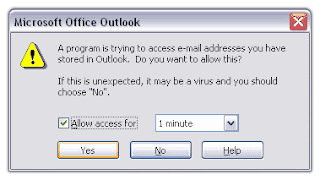
When the script enters the distribution list import phase you may be prompted in Outlook to allow the script to access your e-mail address stored in Outlook. Grant the script access for 1 minute to complete the import process.
Download the script here.
--Nick
Migrating mail was simple enough using a combination of drag-and-drop methods of IMAP folders and the Aid4Mail application to migrate local folders to PST files. Migrating address books proved to be a little more difficult. All the documentation on the internet detailed a process of importing a LDIF file into Outlook Express; then converting the Outlook Express address book into Outlook contacts. We found this solution rather cumbersome and it didn’t always import contacts in the desired format.
To solve this problem I wrote a VBScript that would parse a LDIF file and create the associated Outlook contacts.
How it works
First, export your address book as an LDIF file from your old IMAP client. If you have multiple address books you will need to export each into its own LDIF file.
Second, run the ImportLDIF.vbs script from a command prompt using CScript.exe. The script will parse the specified LDIF file and import any contacts/distribution lists included. The script will actually parse the LDIF file twice. The first time it will import any user contacts and the second run will import distribution lists. The LDIF file is parsed twice to ensure that all the contact objects have been created before creating the distribution lists and adding the members.
The script accepts 2 parameters: 1) the LDIF file name and 2) an optional category for all the users/groups in the specified LDIF file. The category option was added for those instances where users previously had multiple address books.
cscript.exe ‹path›\ImportLdif.vbs ‹path›\‹exported file name›.ldif /Category:"Category Name"
When the script enters the distribution list import phase you may be prompted in Outlook to allow the script to access your e-mail address stored in Outlook. Grant the script access for 1 minute to complete the import process.

The Script
'# Author: Nick Smith
'#      http://knicksmith.blogspot.com
'# Script Name: ImportLDIF.vbs
'# Purpose: This script will parse a LDIF file and import user
'#  objects as contacts and groups as distribution lists.


'Create a shell object
Dim oShell
Set oShell = CreateObject("Wscript.Shell")

'Ensure the script is run with CScript
CheckForCScript

'Check arguments
If Wscript.Arguments.UnNamed.Count <> 1 then
  Wscript.Echo "Usage: cscript ImportLdif.vbs LdifFileName [/Category:""My Category Name""] "
  Wscript.Echo vbtab & "/Category" & vbtab & "Optional - Creates a category for the imported address book"
  Wscript.Quit
End If

Dim olApp
Dim olNS
Dim contact
Dim contactFolder
Dim contactCategory
Dim bMoveToFolder

Dim mainFSO
Dim objFile
Dim strLine

Const olContactItem = 2
Const olDistributionListItem = 7
Const olFolderContacts = 10

'Create Outlook object
Set olApp = CreateObject ("Outlook.Application")
Set olNS = olApp.GetNamespace("MAPI")

on error resume next

'Open LDIF file
Set mainfso = CreateObject("Scripting.FileSystemObject")
Set objFile = mainFSO.OpenTextFile(Wscript.Arguments.Item(0), 1)
If Err.number <> 0 Then
  'Error Opening File.  Display Error info.
  wscript.echo "Unable to open file: " & Wscript.Arguments.Item(0)
  wscript.echo "Error Number: " & Err.number
  wscript.echo "Error Description: " & Err.Description
  Err.clear

  'No reason to continue script so quit
  Wscript.quit
End if

'Save the contacts in the default folder
Set contactFolder = olNS.GetDefaultFolder(olFolderContacts)

'Create category if needed
If (Wscript.Arguments.Named.Item("Category") <> "") Then
  contactCategory = Wscript.Arguments.Named.Item("Category")
Else
  contactCategory = ""
End if
on error goto 0
'*****************************************************************
' Add Contacts First
'*****************************************************************

Dim strSplit
Dim bContact
Dim bFullName

'Start parsing file
Do Until objFile.AtEndOfStream
  strLine=objFile.ReadLine

  'Create contact object
  Set contact = olApp.CreateItem(olContactItem)
  bContact = false
  bFullName = false
  Do Until ((Trim(strLine) = "") or (objFile.AtEndOfStream))
    strSplit = Split(Trim(strLine),":")
    select case Trim(Lcase(strSplit(0)))
      case "objectclass"
        if Trim(strSplit(1)) = "person" then
          bContact = true
        end if
      case "givenname"
        contact.FirstName = Trim(strSplit(1))
        bFullName = true
      case "sn"
        contact.LastName = Trim(strSplit(1))
      case "cn"
        contact.FullName = Trim(strSplit(1))
      case "mail"
        contact.Email1Address = Trim(strSplit(1))
        contact.Email1DisplayName = Trim(strSplit(1))
        'Save contact as email address if no name
        If bFullName <> True Then
          contact.FullName = Trim(strSplit(1))
          contact.FileAs = Trim (strSplit(1))
        End If
      case "telephonenumber"
        contact.BusinessTelephoneNumber = Trim(strSplit(1))
      case "homephone"
        contact.HomeTelephoneNumber = Trim(strSplit(1))
      case "facsimiletelephonenumber"
        contact.BusinessFaxNumber = Trim(strSplit(1))
      case "homepostaladdress"
        contact.HomeAddressStreet = Trim(strSplit(1))
      case "mozillahomelocalityname"
        contact.HomeAddressCity = Trim(strSplit(1))
      case "mozillahomestate"
        contact.HomeAddressState = Trim(strSplit(1))
      case "mozillahomepostalcode"
        contact.HomeAddressPostalCode = Trim(strSplit(1))
      case "mozillahomecountryname"
        contact.HomeAddressCountry = Trim(strSplit(1))
      case "postalAddress"
        contact.BusinessAddressStreet = Trim(strSplit(1))
      case "l"
        contact.BusinessAddressCity = Trim(strSplit(1))
      case "st"
        contact.BusinessAddressState = Trim(strSplit(1))
      case "postalcode"
        contact.BusinessAddressPostalCode = Trim(strSplit(1))
      case "c"
        contact.BusinessAddressCountry = Trim(strSplit(1))
      case "title"
        contact.JobTitle = Trim(strSplit(1))
      case "ou"
        contact.Department = Trim(strSplit(1))
      case "o"
        contact.CompanyName = Trim(strSplit(1))
      case "workurl"
        contact.BusinessHomePage = Replace(Trim(strSplit(2)),"//","")
      case "homeurl"
        contact.PersonalHomePage = Replace(Trim(strSplit(2)),"//","")
      case "description"
        contact.Body = Trim(strSplit(1))
      case "xmozillanickname"
        contact.NickName = Trim(strSplit(1))
      'Template fo addistional attributes
      'case ""
      '  contact. = Trim(strSplit(1))
    end select
    strLine=objFile.ReadLine
  Loop

  'If this is a contact, save it
  If bContact Then
    contact.Categories = contactCategory
    contact.Save
    wscript.echo "Contact Created:" & contact.FullName
  End If
Loop

objFile.Close


'*****************************************************************
' Now Add Distribution Lists
'*****************************************************************

'Reopen file
Set objFile = mainFSO.OpenTextFile(Wscript.Arguments.Item(0), 1)

Dim subSplit
Dim bList
Dim list
Dim objRcpnt

'Start parsing file
Do Until objFile.AtEndOfStream
  strLine=objFile.ReadLine

  'Create a distributil list
  Set list = olApp.CreateItem(olDistributionListItem)
  bList = false
  bFullName = false
  Do Until ((Trim(strLine) = "") or (objFile.AtEndOfStream))
    strSplit = Split(Trim(strLine),":")
    select case Trim(Lcase(strSplit(0)))
      case "objectclass"
        if Trim(strSplit(1)) = "groupOfNames" then
          bList = true
        end if
      case "cn"
        list.DLName = Trim(strSplit(1))
      case "description"
        'list.Description = Trim(strSplit(1))
      case "member"
        if (Ubound(strSplit) = 1 ) then
          subSplit = Split(strSplit(1),"mail=")
          if (Ubound(subSplit) = 1) then
            'Create recipient with email address
            set objRcpnt = olApp.Session.CreateRecipient(subSplit(1))
            objRcpnt.Resolve
            list.AddMember objRcpnt
          end if
        end if
    end select
    strLine=objFile.ReadLine
  Loop
  'If distribution list, save it
  If bList Then
    List.Categories = contactCategory
    List.Save
    wscript.echo "List Created:" & list.DLName
  End If
Loop

objFile.Close


Sub CheckForCScript()
  If Not Lcase(WScript.FullName) = Lcase(WScript.Path & "\cscript.exe") Then

  UsageString = "Please launch script using cscript.exe" & vbcrlf
  UsageString = UsageString & "Usage: cscript.exe ImportLdif.vbs LdifFileName [/Category:""My Category Name""] " & vbcrlf
  UsageString = UsageString & vbtab & "/Category" & vbtab & "Optional - Creates a category for the imported address book"
  oShell.Popup UsageString
  WScript.Quit 0
  End If
End Sub
Download the script here.
--Nick
Sunday, April 8, 2007
Script: Exchange 2007 backups with NTBackup
NTBackup is a great solution for Exchange disaster recovery without buying expensive additions to your current backup software. We use NTBackup to backup each Exchange database to its own backup file. Afterwards our primary backup software will send each of those files to tape. Here is a script we use to dynamically backup all the databases on our Exchange servers using NTBackup.
Technet has a great article on how Microsoft IT uses NTBackup to backup their Exchange 2003 clusters. This article recommends some registry entries to help optimize performance as well as details about an enhanced NTBackup version that is included with Windows 2003 Service Pack 1. These performance enhancements cut our backup times by more than half. To start the script I set these registry values.
Next, the script will detect all the mailbox databases on the server. The same steps will be performed for public folder databases.
Normally a ‘backup command’ or .bks file will be created by the NTBackup GUI. The script will create a .bks file for each database with the correct JET syntax and file encoding.
The ‘&’ character is an alias for the Invoke-Expression cmdlet. I use ‘cmd /c’ to ensure that the script waits for the completion of the database backup before continuing.
Each backup process will create a log file in the format of backup##.log within the %userprofile%\Local Settings\Application Data\Microsoft\Windows NT\NTBackup\data\ directory. The script will add the contents of the latest backup file to the backup log for the server.
At the end of the script, this file can be formatted and emailed to the system administrators.
To backup our cluster we created separate cluster groups for our backup disk resource. This cluster group is moved to the corresponding active server to write the backup files. Afterwards it is moved to a passive server that sends the backup files to tape. We schedule this script to be run at the same time on all cluster nodes. It tests if a file path exists (that would be owned by an exchange virtual server) and if so perform the backup for the corresponding server node.
Because this script uses PoweSshell with Exchange cmdlets you can’t just schedule the .ps1 file. You must run PowerShell, add in the Exchange PSConsoleFile, and invoke the script as a command.
C:\WINDOWS\system32\WindowsPowerShell\v1.0\powershell.exe -PSConsoleFile "C:\Program Files\Microsoft\Exchange Server\bin\exshell.psc1" -command "c:\util\Backup-Databases.ps1"
Download the clustered and standalone server scripts here.
--Nick
Optimizing NTBackup
Technet has a great article on how Microsoft IT uses NTBackup to backup their Exchange 2003 clusters. This article recommends some registry entries to help optimize performance as well as details about an enhanced NTBackup version that is included with Windows 2003 Service Pack 1. These performance enhancements cut our backup times by more than half. To start the script I set these registry values.
#Add registry keys to enhance NTBackup performance
New-ItemProperty -Path:"HKCU:Software\Microsoft\Ntbackup\Backup Engine" -Name:"Logical Disk Buffer Size" -Value:"64" -PropertyType:"String" -Force
New-ItemProperty -Path:"HKCU:Software\Microsoft\Ntbackup\Backup Engine" -Name:"Max Buffer Size" -Value:"1024" -PropertyType:"String" -Force
New-ItemProperty -Path:"HKCU:Software\Microsoft\Ntbackup\Backup Engine" -Name:"Max Num Tape Buffers" -Value:"16" -PropertyType:"String" -Force
Detect Databases on Each Server
Next, the script will detect all the mailbox databases on the server. The same steps will be performed for public folder databases.
Get-MailboxDatabase -Server:$ServerName | foreach{
...
Creating the Backup Command File
Normally a ‘backup command’ or .bks file will be created by the NTBackup GUI. The script will create a .bks file for each database with the correct JET syntax and file encoding.
#Create the backup JET file for NTBackup
$JetBackupSyntax = "JET " + $_.ServerName + "\Microsoft Information Store\" + $_.StorageGroupName + "\" + $_.AdminDisplayName + "`n"
$BksFileName = $BackupScriptPath + $_.ServerName + "" + $_.StorageGroupName + "" + $_.AdminDisplayName + ".bks"
$JetBackupSyntax | out-file -filepath $BksFileName -encoding unicode
Invoking NTBackup
The ‘&’ character is an alias for the Invoke-Expression cmdlet. I use ‘cmd /c’ to ensure that the script waits for the completion of the database backup before continuing.
#Call NTBackup to backup the database
$BksDescriptiveName = $_.ServerName + "-" + $_.StorageGroupName.Replace(" ","_") + "-" + $_.AdminDisplayName.Replace(" ","_")
&cmd /c "C:\WINDOWS\system32\ntbackup.exe backup `"@$BksFileName`" /n $BksDescriptiveName /d $BksDescriptiveName /v:no /r:no /rs:no /hc:off /m normal /fu /j `"$BksDescriptiveName`" /l:s /f $BackupPath$BksDescriptiveName.bkf"
Compiling a Single Log File
Each backup process will create a log file in the format of backup##.log within the %userprofile%\Local Settings\Application Data\Microsoft\Windows NT\NTBackup\data\ directory. The script will add the contents of the latest backup file to the backup log for the server.
#Append database backup log to server backup log
&type (get-childitem "$Home\Local Settings\Application Data\Microsoft\Windows NT\NTBackup\data\" | Sort -Property:LastWriteTime -Descending)[0].FullName >> $BackupLog
At the end of the script, this file can be formatted and emailed to the system administrators.
#Add line breaks to format the backup log
$BackupLogFormatted = ""
Get-Content $BackupLog | foreach { $BackupLogFormatted += $_ + "`n" }

#Email the backup log
$smtp = New-Object Net.Mail.SmtpClient -arg $EmailSMTPServer
$smtp.Send($EmailReportFromAddress,$EmailReportTo,"Exchange Backup Results for " + $ServerName + ": " + $(Get-Date).ToString('MM/dd/yyyy'),$BackupLogFormatted)
Cluster Version
To backup our cluster we created separate cluster groups for our backup disk resource. This cluster group is moved to the corresponding active server to write the backup files. Afterwards it is moved to a passive server that sends the backup files to tape. We schedule this script to be run at the same time on all cluster nodes. It tests if a file path exists (that would be owned by an exchange virtual server) and if so perform the backup for the corresponding server node.
if (Test-Path G:\)
{
write-host ""
write-host "STARTING BACKUP (" $(get-date).Tostring("yyyy-MM-dd HH:mm:ss") ")"
write-host ""
write-host "** Getting Backup Disk..."
CLUSTER GROUP "EXEVS1 Backups" /MOVETO:$env:COMPUTERNAME
write-host "** Performing Backup..."

#Backup databases on EXEVS1 to the R:\ drive
perform_backup "EXEVS1" "R:\"

write-host "** Reassign Backup Disk to Server hit by TSM..."
CLUSTER GROUP "EXEVS1 Backups" /MOVETO:$BackupsServer
write-host ""
write-host "BACKUP COMPLETE (" $(get-date).Tostring("yyyy-MM-dd HH:mm:ss") ")"
write-host ""
}
elseif (Test-Path H:\)
{
write-host ""
write-host "STARTING BACKUP (" $(get-date).Tostring("yyyy-MM-dd HH:mm:ss") ")"
write-host ""
write-host "** Getting Backup Disk..."
CLUSTER GROUP "EXEVS2 Backups" /MOVETO:$env:COMPUTERNAME
write-host "** Performing Backup..."
perform_backup "EXEVS2" "S:\"
write-host "** Reassign Backup Disk to Server hit by TSM..."
CLUSTER GROUP "EXEVS2 Backups" /MOVETO:$BackupsServer
write-host ""
write-host "BACKUP COMPLETE (" $(get-date).Tostring("yyyy-MM-dd HH:mm:ss") ")"
write-host ""
}
elseif (Test-Path I:\)
{
write-host ""
write-host "STARTING BACKUP (" $(get-date).Tostring("yyyy-MM-dd HH:mm:ss") ")"
write-host ""
write-host "** Getting Backup Disk..."
CLUSTER GROUP "EXEVS3 Backups" /MOVETO:$env:COMPUTERNAME
write-host "** Performing Backup..."
perform_backup "EXEVS3" "T:\"
write-host "** Reassign Backup Disk to Server hit by TSM..."
CLUSTER GROUP "EXEVS3 Backups" /MOVETO:$BackupsServer
write-host ""
write-host "BACKUP COMPLETE (" $(get-date).Tostring("yyyy-MM-dd HH:mm:ss") ")"
write-host ""
}
else
{
write-host "--- NO BACKUP REQUIRED ---";
}
Scheduling the Task
Because this script uses PoweSshell with Exchange cmdlets you can’t just schedule the .ps1 file. You must run PowerShell, add in the Exchange PSConsoleFile, and invoke the script as a command.
C:\WINDOWS\system32\WindowsPowerShell\v1.0\powershell.exe -PSConsoleFile "C:\Program Files\Microsoft\Exchange Server\bin\exshell.psc1" -command "c:\util\Backup-Databases.ps1"
The Script
function perform_backup ([string] $ServerName, [string] $BackupRootDrive) {

### Start User Defined Variables ###
#Set the backup file paths
$BackupScriptPath = $BackupRootDrive + "BackupFiles\"
$BackupPath = $BackupRootDrive + "DailyBackups\"

#Set email options
$EmailReportTo = "user@domain.com"
$EmailReportFromAddress = "user@domain.com"
$EmailSMTPServer = "smtp.domain.com"

$BackupLog = $BackupScriptPath + "ExchangeBackupLogs.log"

### End User Defined Variables ###

#Create an empty backup log file
new-item $BackupLog -type file -force

#Add registry keys to enhance NTBackup performance
New-ItemProperty -Path:"HKCU:Software\Microsoft\Ntbackup\Backup Engine" -Name:"Logical Disk Buffer Size" -Value:"64" -PropertyType:"String" -Force
New-ItemProperty -Path:"HKCU:Software\Microsoft\Ntbackup\Backup Engine" -Name:"Max Buffer Size" -Value:"1024" -PropertyType:"String" -Force
New-ItemProperty -Path:"HKCU:Software\Microsoft\Ntbackup\Backup Engine" -Name:"Max Num Tape Buffers" -Value:"16" -PropertyType:"String" -Force

Get-MailboxDatabase -Server:$ServerName | foreach{

#Create the backup JET file for NTBackup
$JetBackupSyntax = "JET " + $_.ServerName + "\Microsoft Information Store\" + $_.StorageGroupName + "\" + $_.AdminDisplayName + "`n"
$BksFileName = $BackupScriptPath + $_.ServerName + "" + $_.StorageGroupName + "" + $_.AdminDisplayName + ".bks"
$JetBackupSyntax | out-file -filepath $BksFileName -encoding unicode

#Call NTBackup to backup the database
$BksDescriptiveName = $_.ServerName + "-" + $_.StorageGroupName.Replace(" ","_") + "-" + $_.AdminDisplayName.Replace(" ","_")
&cmd /c "C:\WINDOWS\system32\ntbackup.exe backup `"@$BksFileName`" /n $BksDescriptiveName /d $BksDescriptiveName /v:no /r:no /rs:no /hc:off /m normal /fu /j `"$BksDescriptiveName`" /l:s /f $BackupPath$BksDescriptiveName.bkf"

#Append database backup log to server backup log
&type (get-childitem "$Home\Local Settings\Application Data\Microsoft\Windows NT\NTBackup\data\" | Sort -Property:LastWriteTime -Descending)[0].FullName >> $BackupLog
}
Get-PublicFolderDatabase -Server:$ServerName | foreach{

#Create the backup JET file for NTBackup
$JetBackupSyntax = "JET " + $_.ServerName + "\Microsoft Information Store\" + $_.StorageGroupName + "\" + $_.AdminDisplayName + "`n"
$BksFileName = $BackupScriptPath + $_.ServerName + "" + $_.StorageGroupName + "" + $_.AdminDisplayName + ".bks"
$JetBackupSyntax | out-file -filepath $BksFileName -encoding unicode

#Call NTBackup to backup the database
$BksDescriptiveName = $_.ServerName + "-" + $_.StorageGroupName.Replace(" ","_") + "-" + $_.AdminDisplayName.Replace(" ","_")
&cmd /c "C:\WINDOWS\system32\ntbackup.exe backup `"@$BksFileName`" /n $BksDescriptiveName /d $BksDescriptiveName /v:no /r:no /rs:no /hc:off /m normal /fu /j `"$BksDescriptiveName`" /l:s /f $BackupPath$BksDescriptiveName.bkf"

#Append database backup log to server backup log
&type (get-childitem "$Home\Local Settings\Application Data\Microsoft\Windows NT\NTBackup\data\" | Sort -Property:LastWriteTime -Descending)[0].FullName >> $BackupLog
}

#Add line breaks to format the backup log
$BackupLogFormatted = ""
Get-Content $BackupLog | foreach { $BackupLogFormatted += $_ + "`n" }

#Email the backup log
$smtp = New-Object Net.Mail.SmtpClient -arg $EmailSMTPServer
$smtp.Send($EmailReportFromAddress,$EmailReportTo,"Exchange Backup Results for " + $ServerName + ": " + $(Get-Date).ToString('MM/dd/yyyy'),$BackupLogFormatted)

}

### Start of backup script ###

#Define backup server
#The cluster backup resource will be moved to this server upon completion
$BackupsServer = "BackupServerName"

if (Test-Path G:\)
{
write-host ""
write-host "STARTING BACKUP (" $(get-date).Tostring("yyyy-MM-dd HH:mm:ss") ")"
write-host ""
write-host "** Getting Backup Disk..."
CLUSTER GROUP "EXEVS1 Backups" /MOVETO:$env:COMPUTERNAME
write-host "** Performing Backup..."

#Backup databases on EXEVS1 to the R:\ drive
perform_backup "EXEVS1" "R:\"

write-host "** Reassign Backup Disk to Server hit by TSM..."
CLUSTER GROUP "EXEVS1 Backups" /MOVETO:$BackupsServer
write-host ""
write-host "BACKUP COMPLETE (" $(get-date).Tostring("yyyy-MM-dd HH:mm:ss") ")"
write-host ""
}
elseif (Test-Path H:\)
{
write-host ""
write-host "STARTING BACKUP (" $(get-date).Tostring("yyyy-MM-dd HH:mm:ss") ")"
write-host ""
write-host "** Getting Backup Disk..."
CLUSTER GROUP "EXEVS2 Backups" /MOVETO:$env:COMPUTERNAME
write-host "** Performing Backup..."
perform_backup "EXEVS2" "S:\"
write-host "** Reassign Backup Disk to Server hit by TSM..."
CLUSTER GROUP "EXEVS2 Backups" /MOVETO:$BackupsServer
write-host ""
write-host "BACKUP COMPLETE (" $(get-date).Tostring("yyyy-MM-dd HH:mm:ss") ")"
write-host ""
}
elseif (Test-Path I:\)
{
write-host ""
write-host "STARTING BACKUP (" $(get-date).Tostring("yyyy-MM-dd HH:mm:ss") ")"
write-host ""
write-host "** Getting Backup Disk..."
CLUSTER GROUP "EXEVS3 Backups" /MOVETO:$env:COMPUTERNAME
write-host "** Performing Backup..."
perform_backup "EXEVS3" "T:\"
write-host "** Reassign Backup Disk to Server hit by TSM..."
CLUSTER GROUP "EXEVS3 Backups" /MOVETO:$BackupsServer
write-host ""
write-host "BACKUP COMPLETE (" $(get-date).Tostring("yyyy-MM-dd HH:mm:ss") ")"
write-host ""
}
else
{
write-host "--- NO BACKUP REQUIRED ---";
}
Download the clustered and standalone server scripts here.
--Nick
Friday, April 6, 2007
5 things you don't know about me
Evan tagged me so with a '5 things you don't know about me' post. So here it goes:
Now it's my turn: Matt Stehle and Josh Maher
- I am a hockey fanatic. It started when I was a kid watching DU hockey and with the NHL playoffs about to start, this is my favorite time of the year. Too bad it looks like my team is going to finish just out of the playoffs this year despite a valiant effort.
- In grade school I told a teacher I did not need to write my term paper because I was going to play professional baseball. I was promptly suspended for the remainder of the season.
- To relax on the weekends and vacations I like to ride dirt bikes. My favorite place to ride is Ouray, CO but I am going to give Moab a try in June.
- I once wrote my own intrusion detection program that would compare the MD5 hashes of a file system and report any files that had been changed since the last scan.....in VBScript.
- Today I forwarded my desk phone line to Office Communications Server.

Now it's my turn: Matt Stehle and Josh Maher
Sunday, April 1, 2007
Delegating Distribution Group Management Via Outlook
Managing distribution lists is normally a duty of Exchange and/or Active Directory administrators. The process for adding or removing a member of a distribution list is likely to submit a request and wait until an administrator makes the necessary changes.
Using a combination of Active Directory permissions and the built-in tools of Outlook you can delegate the ability to manage distribution lists to the user. Here’s how to do it:
For a user to have the ability to manage distribution group membership they must be assigned the ‘Write Members’ active directory permission. This can be done in ADUC, but I find PowerShell much simpler.
Adding permission for a single user:
Adding permission for a group of users:
After locating the group within the Global Address List, select ‘Modify Members…’ from the properties screen. To add new members select the ‘Add…’ option and located the desired users within the GAL. Members can be removed by highlighting the desired user and selecting the ‘Remove’ button.
If you receive a “Changes to the distribution list membership cannot be saved. You do not have sufficient permission to perform this operation on this object” error message either permissions are not assigned correctly or the user is not connecting a global catalog from the domain hosting the distribution group.
--Nick
Using a combination of Active Directory permissions and the built-in tools of Outlook you can delegate the ability to manage distribution lists to the user. Here’s how to do it:
Adding Permissions
For a user to have the ability to manage distribution group membership they must be assigned the ‘Write Members’ active directory permission. This can be done in ADUC, but I find PowerShell much simpler.
Adding permission for a single user:
Add-ADPermission -Identity:'Group Display Name’ -User:domain\username -AccessRights ReadProperty, WriteProperty -Properties 'Member'Adding permission for a group of users:
Add-ADPermission -Identity:'Group Display Name’ -User:'Display Name of Permissions Group’ -AccessRights ReadProperty, WriteProperty -Properties 'Member'Modifying Group Membership within Outlook
After locating the group within the Global Address List, select ‘Modify Members…’ from the properties screen. To add new members select the ‘Add…’ option and located the desired users within the GAL. Members can be removed by highlighting the desired user and selecting the ‘Remove’ button.
If you receive a “Changes to the distribution list membership cannot be saved. You do not have sufficient permission to perform this operation on this object” error message either permissions are not assigned correctly or the user is not connecting a global catalog from the domain hosting the distribution group.
--Nick
Tuesday, March 27, 2007
Managing Exchange 2007 Recipients with C#
During our Exchange 2007 implementation I was faced with the task of integrating Exchange 2007 recipient management with our in-house identity management systems. Our active directory provisioning code was already written in .Net and implemented CDOEXM for recipient management. One of the things that concerned me the most about migrating to Exchange 2007 was the ability to manage recipients from within the existing code. CDOEXM is not supported for managing Exchange 2007 recipients and the idea of invoking the Exchange management shell from .Net code was a foreign concept to me. Information on how to do so was sparse. Many many thanks to Vivek Sharma for posting sample code before anything else was available. My early code was based directly off his examples. Since then I have created a few applications using these methods and I have learned quite a few lessons while doing so. Below are some of my experiences and customizations that made the process much simpler.
First, here are some helpful links to get started with invoking the management shell from C# code:
Creating Applications that Use the Default Host
http://msdn2.microsoft.com/en-us/library/ms714671.aspx
Mstehle's Introduction to Exchange Powershell Automation
Part 1: http://blogs.msdn.com/mstehle/archive/2007/01/25/fyi-introduction-to-exchange-powershell-automation-part-1.aspx
Part 2: http://blogs.msdn.com/mstehle/archive/2007/01/25/outbox-introduction-to-exchange-powershell-automation-part-2.aspx
Sample Code: Calling Exchange cmdlets from .Net code
http://www.viveksharma.com/techlog/2006/07/27/sample-code-calling-exchange-cmdlets-from-net-code
My first attempt at integrating recipient management into our identity management provisioning code worked well but I paid quite a time penalty when invoking the shell and issuing commands to update/set attributes on each account. Updating a single account was not too bad (~1 second per account) after the Runspace was completely setup and all the Exchange DLLs were loaded. However, when updating all 60,000+ accounts the time penalty added up and became an unacceptable bottleneck. To prevent this, I implemented logic to check if each attribute needed to be updated before invoking the command to set the attribute. This logic removed the bottleneck and very soon the code was running just as quickly as before; except for the time needed to create the Runspace. These optimizations made the Runspace unnecessary for most instances when an update was run on a single account and no Exchange attributes were changed. Thus the wrapper class was setup to store a Runspace that would only be initialized if a command was invoked.
Each example will perform the same task and produce the same results using both the RuspaceInvoke and PipelineInvoke methods.
Initializing the Exchange Management Shell Wrapper
Singletons do not have a constructor so you must create an ‘instance’.
Invoking a Single Command
In this example both the RunspaceInvoke and PipelineInvoke methods are used to get information about the mailbox for ‘knsmith’. In each foreach loop are different methods for accessing the data within the PSObject.
Invoking Commands With Errors Ouput
In this example each command will attempt to create a new file at c:\temp called test.ps1. A new file will be created it one does not already exist. If the file does exist, an error will be returned and the output will be: “Error: The file ‘C:\temp\test.ps1’ already exists.
Invoking Multiple Commands
Invoking multiple commands using a pipe is one of my most common tasks in PowerShell. The RunspaceInvoke method is pretty straight forward as you can just pass in a command string the same as you use in the Exchange Management Shell. The PipelineInvoke method is a little different. You must create a Command object for each command you wish to issue. After the Command objects have been created, add them in the order they are to be executed to the collection.
Passing an Input Object to the Runspace
The RunspaceInvoke method offers the added ability to pass in an input collection. The key to this is that you must start your command string with “$input | ” so that your input will be processed. This example will show how you can get the attributes for a mailbox, make a change and commit the changes by passing back the results and using the Set-Mailbox cmdlet.
Download the wrapper class and example code. (Right-click and 'Save Target As')
Whether or not you decide to use this wrapper class I hope it at least helps you with examples of how to utilize the RunspaceInvoke and Pipeline methods for invoking the Exchange management shell.
--Nick
Web References
First, here are some helpful links to get started with invoking the management shell from C# code:
Creating Applications that Use the Default Host
http://msdn2.microsoft.com/en-us/library/ms714671.aspx
Mstehle's Introduction to Exchange Powershell Automation
Part 1: http://blogs.msdn.com/mstehle/archive/2007/01/25/fyi-introduction-to-exchange-powershell-automation-part-1.aspx
Part 2: http://blogs.msdn.com/mstehle/archive/2007/01/25/outbox-introduction-to-exchange-powershell-automation-part-2.aspx
Sample Code: Calling Exchange cmdlets from .Net code
http://www.viveksharma.com/techlog/2006/07/27/sample-code-calling-exchange-cmdlets-from-net-code
Caveats
- Creating the necessary Runspace and RunspaceInvoke instances will take 2-3 seconds to get setup in a compiled application.
- It can take 6-9 seconds to execute the first Exchange command on a computer with only the Exchange 2007 management tools installed. You may also receive the following errors in the event log:
Event Type: Error
Event Source: MSExchange ADAccess
Event Category: General
Event ID: 2152
Date: 3/26/2007
Time: 7:38:52 PM
User: N/A
Computer: HASTY
Description:
Process eIDAD.exe (PID=2984). A remote procedure call (RPC) request to the Microsoft Exchange Active Directory Topology service failed with error 1753 (Error 6d9 from HrGetServersForRole). Make sure that the Remote Procedure Call (RPC) service is running. In addition, make sure that the network ports that are used by RPC are not blocked by a firewall.
Event Type: Error
Event Source: MSExchange Common
Event Category: Devices
Event ID: 106
Date: 3/26/2007
Time: 7:38:57 PM
User: N/A
Computer: HASTY
Description:
Performance counter updating error. Counter name is Latest Exchange Topology Discovery Time in Seconds, category name is MSExchange Topology. Optional code: 2.
- Invoking the Runspace and adding the Exchange management snap-in does not give you the same environment as opening the Exchange Management Shell. One of the most striking differences is that the $AdminSessionADSettings environment settings are not available. By default, all Exchange management cmdlets will search the entire forest. You can best replicate this environment by starting a normal PowerShell instance and add the Microsoft.Exchange.Management.Powershell.Admin snap-in. (Run “Add-PSSnapin -Name:’Microsoft.Exchange.Management.PowerShell.Admin’ ”).
- To compile your code you must add a reference for Systems.Management.Automation. By default this is added to the global assembly cache when PowerShell is installed. The best way to add this DLL as a reference is to manually edit the .csproj file associated with the project and add the following line to the references itemgroup.
<reference include="System.Management.Automation">
Adding the reference in this manner will ensure that you are always using the appropriate DLL whether you are running on a 32 or 64 bit machine.
Birth of the wrapper class
My first attempt at integrating recipient management into our identity management provisioning code worked well but I paid quite a time penalty when invoking the shell and issuing commands to update/set attributes on each account. Updating a single account was not too bad (~1 second per account) after the Runspace was completely setup and all the Exchange DLLs were loaded. However, when updating all 60,000+ accounts the time penalty added up and became an unacceptable bottleneck. To prevent this, I implemented logic to check if each attribute needed to be updated before invoking the command to set the attribute. This logic removed the bottleneck and very soon the code was running just as quickly as before; except for the time needed to create the Runspace. These optimizations made the Runspace unnecessary for most instances when an update was run on a single account and no Exchange attributes were changed. Thus the wrapper class was setup to store a Runspace that would only be initialized if a command was invoked.
Notes About the Wrapper Class
- The wrapper class is a singleton and must me instantiated as such. Because the class is a singleton, only one Runspace will be created no matter how many times the class is instantiated.
- The Runspace is only created once the first command is invoked. The same is true with RunspaceInvoke.
- The wrapper class combines methods from both the Runspace and RunspaceInvoke classes.
The Wrapper Class
using System;
using System.IO;
using System.Text;
using System.Reflection;
using System.Diagnostics;
using System.Collections;
using System.Collections.Generic;
using System.Collections.ObjectModel;
using System.Management.Automation;
using System.Management.Automation.Host;
using System.Management.Automation.Runspaces;
namespace EMSDemo.Utility
{
public sealed class ExchangeManagementShellWrapper
{
#region Variable Declaration
private RunspaceConfiguration rc; //RunspaceConfiguration
private Runspace r; //Runspace
private RunspaceInvoke ri; //RunspaceInvoke
private static readonly ExchangeManagementShellWrapper instance = new ExchangeManagementShellWrapper(); //Singleton instance
#endregion
private ExchangeManagementShellWrapper(){}
public static ExchangeManagementShellWrapper Instance
{
get
{
return instance;
}
}
private void InitializeRunspace()
{
//Setup Runspace environment for Exchange Management Shell
AppDomain.CurrentDomain.AssemblyResolve += new ResolveEventHandler(AssemblyResolver);
//Create RunspaceConfiguration
rc = RunspaceConfiguration.Create();
//Add PSSnapIn for Exchange 2007 and check for warnings
PSSnapInException warning;
PSSnapInInfo info = rc.AddPSSnapIn("Microsoft.Exchange.Management.PowerShell.Admin", out warning);
if (warning != null)
{
// A warning is not expected, but if one is detected
// write the warning and return.
System.Console.Write(warning.Message);
return;
}
//Create and open runspace
r = RunspaceFactory.CreateRunspace(rc);
r.Open();
}
private void InitializeRunspaceInvoke()
{
//Create runspace if it has not already been created
if (r == null) { InitializeRunspace(); }
//Create RunspaceInvoke
ri = new RunspaceInvoke(r);
}
public ICollection<PSObject> RunspaceInvoke(string EMSCommand)
{
//Create RunspaceInvoke if it has not already been created
if (ri == null) { InitializeRunspaceInvoke(); }
//Invoke the commmand and return the results
return ri.Invoke(EMSCommand);
}
public ICollection<PSObject> RunspaceInvoke(string EMSCommand, IEnumerable input)
{
//Create RunspaceInvoke if it has not already been created
if (ri == null) { InitializeRunspaceInvoke(); }
//Invoke the commmand and return the results
return ri.Invoke(EMSCommand, input);
}
public ICollection<PSObject> RunspaceInvoke(string EMSCommand, out IList errors)
{
//Invoke the RunspaceInvoke method with a null input
return RunspaceInvoke(EMSCommand, null, out errors);
}
public ICollection<PSObject> RunspaceInvoke(string EMSCommand, IEnumerable input, out IList errors)
{
//Create RunspaceInvoke if it has not already been created
if (ri == null) { InitializeRunspaceInvoke(); }
//Invoke the commmand and return the results and errors
return ri.Invoke(EMSCommand, input, out errors);
}
public ICollection<PSObject> PipelineInvoke(Collection<Command> EMSCommands, out PipelineReader<object> Errors)
{
//Create Runspace if it has not already been created
if (r == null) { InitializeRunspace(); }
//Create Pipeline and add the commands
Pipeline pipeline = r.CreatePipeline();
foreach (Command item in EMSCommands)
{
pipeline.Commands.Add(item);
}
//Invoke the commands and return the results and errors
ICollection<PSObject> results = pipeline.Invoke();
Errors = pipeline.Error;
pipeline = null;
return results;
}
public ICollection<PSObject> PipelineInvoke(Collection<Command> EMSCommands)
{
//Create Runspace if it has not already been created
if (r == null) { InitializeRunspace(); }
//Create Pipeline and add the commands
Pipeline pipeline = r.CreatePipeline();
foreach (Command item in EMSCommands)
{
pipeline.Commands.Add(item);
}
//Invoke the commands and return the results
return pipeline.Invoke();
}
public ICollection<PSObject> PipelineInvoke(Command EMSCommand, out PipelineReader<object> Errors)
{
//Create Runspace if it has not already been created
if (r == null) { InitializeRunspace(); }
//Create Pipeline and add the command
Pipeline pipeline = r.CreatePipeline();
pipeline.Commands.Add(EMSCommand);
//Invoke the command and return the results and errors
ICollection<PSObject> results = pipeline.Invoke();
Errors = pipeline.Error;
pipeline = null;
return results;
}
public ICollection<PSObject> PipelineInvoke(Command EMSCommand)
{
//Create Runspace if it has not already been created
if (r == null) { InitializeRunspace(); }
//Create Pipeline and add teh command
Pipeline pipeline = r.CreatePipeline();
pipeline.Commands.Add(EMSCommand);
//Invoke the command and return the results
return pipeline.Invoke();
}
public void Dispose()
{
//Close the Runspace and cleanup
r.Close();
ri = null;
r = null;
}
private static System.Reflection.Assembly AssemblyResolver(object p, ResolveEventArgs args)
{
//Add path for the Exchange 2007 DLLs
if (args.Name.Contains("Microsoft.Exchange"))
{
return Assembly.LoadFrom(Path.Combine("C:\\Program Files\\Microsoft\\Exchange Server\\bin\\", args.Name.Split(',')[0] + ".dll"));
}
else
{
return null;
}
}
}
}
Examples
Each example will perform the same task and produce the same results using both the RuspaceInvoke and PipelineInvoke methods.
Initializing the Exchange Management Shell Wrapper
Singletons do not have a constructor so you must create an ‘instance’.
static void Main(string[] args)
{
//Initialize the ExchangeManagementShellWrapper
ExchangeManagementShellWrapper ems = ExchangeManagementShellWrapper.Instance;
ICollection<PSObject> results;
...
Invoking a Single Command
In this example both the RunspaceInvoke and PipelineInvoke methods are used to get information about the mailbox for ‘knsmith’. In each foreach loop are different methods for accessing the data within the PSObject.
//Use the RunspaceInvoke command with a command string
results = ems.RunspaceInvoke("Get-Mailbox knsmith");
foreach (PSObject item in results)
{
Console.WriteLine(item.Members["Name"].Value.ToString());
}
//Use the PipelineInvoke command with a Command object
Command EMSCommand = new Command("Get-Mailbox");
EMSCommand.Parameters.Add("Identity", "knsmith");
results = ems.PipelineInvoke(EMSCommand);
foreach (PSObject item in results)
{
//A different way of accessing property info from the results
PSPropertyInfo prop = (PSPropertyInfo)item.Properties["Name"];
if (prop != null)
{
Console.WriteLine(prop.Value.ToString());
}
}
Invoking Commands With Errors Ouput
In this example each command will attempt to create a new file at c:\temp called test.ps1. A new file will be created it one does not already exist. If the file does exist, an error will be returned and the output will be: “Error: The file ‘C:\temp\test.ps1’ already exists.
//Using RunspaceInvoke with errors
IList IErrors;
results = ems.RunspaceInvoke("New-Item -Path:'c:\\temp\\test.ps1' -Type:File", out IErrors);
foreach (PSObject item in results)
{
Console.WriteLine(item.Members["Name"].Value.ToString());
}
foreach (object item in IErrors)
{
Console.WriteLine("Error: {0}", item.ToString());
}
//Using PipelineInvoke with errors
EMSCommand = new Command("New-Item");
EMSCommand.Parameters.Add("Path", "c:\\temp\\test.ps1");
EMSCommand.Parameters.Add("Type", "File");
PipelineReader<object> errors;
results = ems.PipelineInvoke(EMSCommand, out errors);
foreach (PSObject item in results)
{
Console.WriteLine(item.Members["Name"].Value.ToString());
}
if (errors.Count > 0)
{
foreach (object obj in errors.ReadToEnd())
{
Console.WriteLine("Error: {0}", obj.ToString());
}
}
Invoking Multiple Commands
Invoking multiple commands using a pipe is one of my most common tasks in PowerShell. The RunspaceInvoke method is pretty straight forward as you can just pass in a command string the same as you use in the Exchange Management Shell. The PipelineInvoke method is a little different. You must create a Command object for each command you wish to issue. After the Command objects have been created, add them in the order they are to be executed to the collection.
//Using the RunspaceInvoke command with a command string
ems.RunspaceInvoke("Get-Mailbox knsmith | Set-Mailbox -EmailAddressPolicyEnabled:$True");
//Using PipelineInvoke with a Command Collection
Collection<Command> CommandsList = new Collection<Command>();
Command GetMailbox = new Command("Get-Mailbox");
GetMailbox.Parameters.Add("Identity", "knsmith");
CommandsList.Add(GetMailbox);
Command SetMailbox = new Command("Set-Mailbox");
SetMailbox.Parameters.Add("EmailAddressPolicyEnabled", true);
CommandsList.Add(SetMailbox);
ems.PipelineInvoke(CommandsList, out errors);
Passing an Input Object to the Runspace
The RunspaceInvoke method offers the added ability to pass in an input collection. The key to this is that you must start your command string with “$input | ” so that your input will be processed. This example will show how you can get the attributes for a mailbox, make a change and commit the changes by passing back the results and using the Set-Mailbox cmdlet.
//Use the RunspaceInvoke command with a command string
results = ems.RunspaceInvoke("Get-Mailbox knsmith");
foreach (PSObject item in results)
{
//Set the property to false
item.Members["UseDatabaseQuotaDefaults"].Value = false;
}
IList SetErrors;
//Save the changes we made to the results
//The $input variable will be equal to the 'results' variable we pass in
ems.RunspaceInvoke("$input | Set-Mailbox", results, out SetErrors);
foreach (object error in SetErrors)
{
Console.WriteLine(error.ToString());
}
Download the wrapper class and example code. (Right-click and 'Save Target As')
Conclusion
Whether or not you decide to use this wrapper class I hope it at least helps you with examples of how to utilize the RunspaceInvoke and Pipeline methods for invoking the Exchange management shell.
--Nick
Subscribe to:
Posts (Atom)